Starting a New Design
Apply a template and adjust the framing (R3-proven flow)
There are five ways into a design. Pick the one that matches what you have in mind — a specific phone, a pile of photos, or nothing yet at all. Whichever door you take, everything saves automatically from the first tap.
Choose your phone & case
Start here when you know exactly whose case you're making.
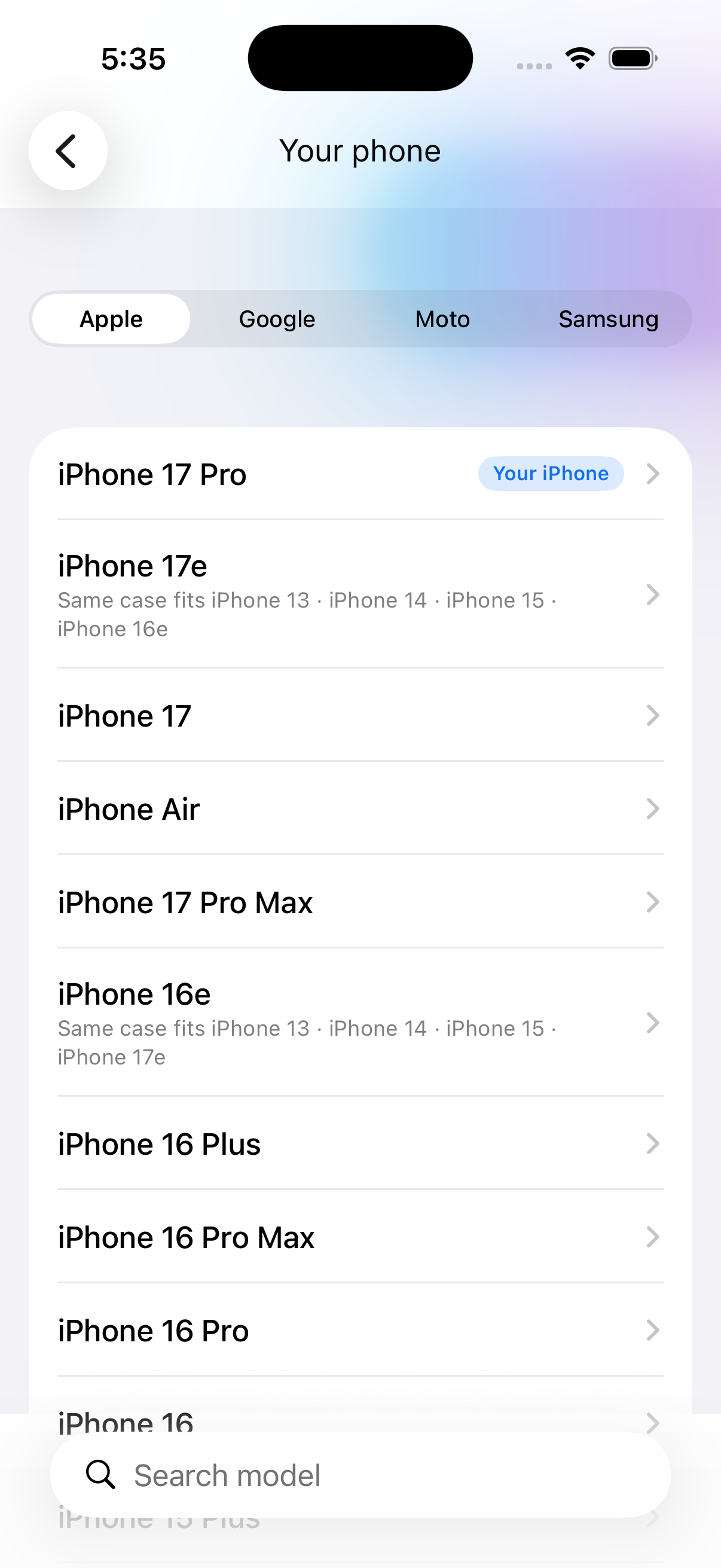
- Pick your phone. Switch brands with the segmented control, or type in the search field — it matches model names and compatible variants. On an iPhone, your own phone is detected and sorted first with a Your iPhone badge. It's a suggestion, never a lock — every other model stays one tap away.
- Pick your case.
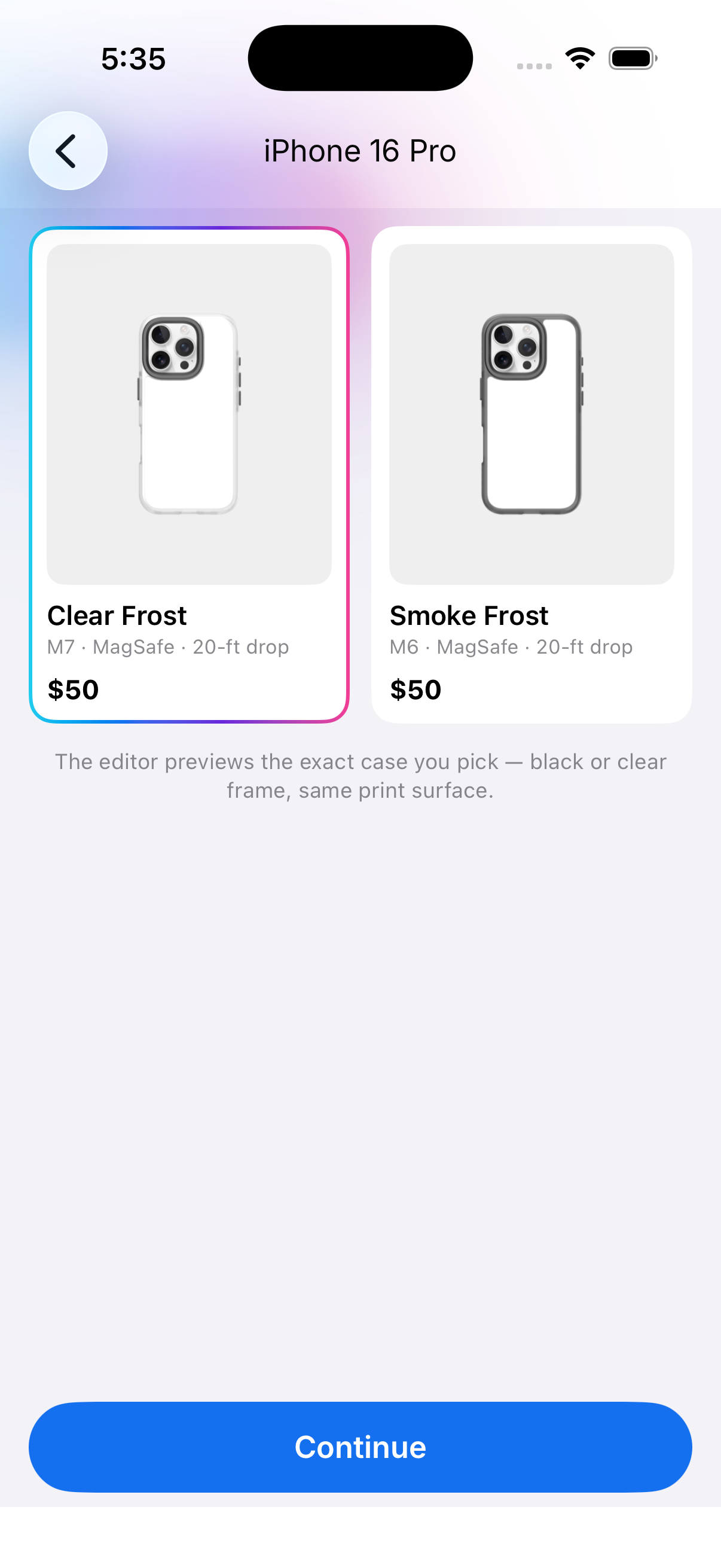
Smoke Frost or Clear Frost — both on the same case platform, same print surface. The cards are real renders of your exact model, so what you see is what prints. Tap a card to select it (the aurora ring confirms), then tap Continue.
If the preview won't load — you'll see an orange note: the app shows an iPhone 16 Pro stand-in so you can keep designing, but printing needs the real case template. Check the kiosk connection before you get attached.
Browse by brand
Start here if you don't know the exact phone model yet.
Pick just the brand — iPhone, Galaxy, Pixel, or Moto — and design on a deferred canvas. You'll confirm the exact model later, right before printing. On an iPhone, the screen shows an honest "Your iPhone: …" caption from on-device detection to speed up the eventual confirm.
Start from your photos
Start here when the photos are the point.
- Tap Choose photos and pick 1–10 from your library. The picker runs entirely on your device — nothing is uploaded.
- Your picks appear in a numbered grid — order matters for multi-photo layouts. Tap ✕ and re-add a photo to change the order. Tap the star on any photo to keep it in Your favorites for next time.
- Tap Show my arrangements, tell us which kind of phone (that can wait until now — see Browse by brand above), and the app lays your photos into every template — plus up to six ✨ Smart picks, arrangements chosen for your specific photos on-device. Tap one to start editing it.
Start from a template gallery
Start here to explore looks before committing to anything.
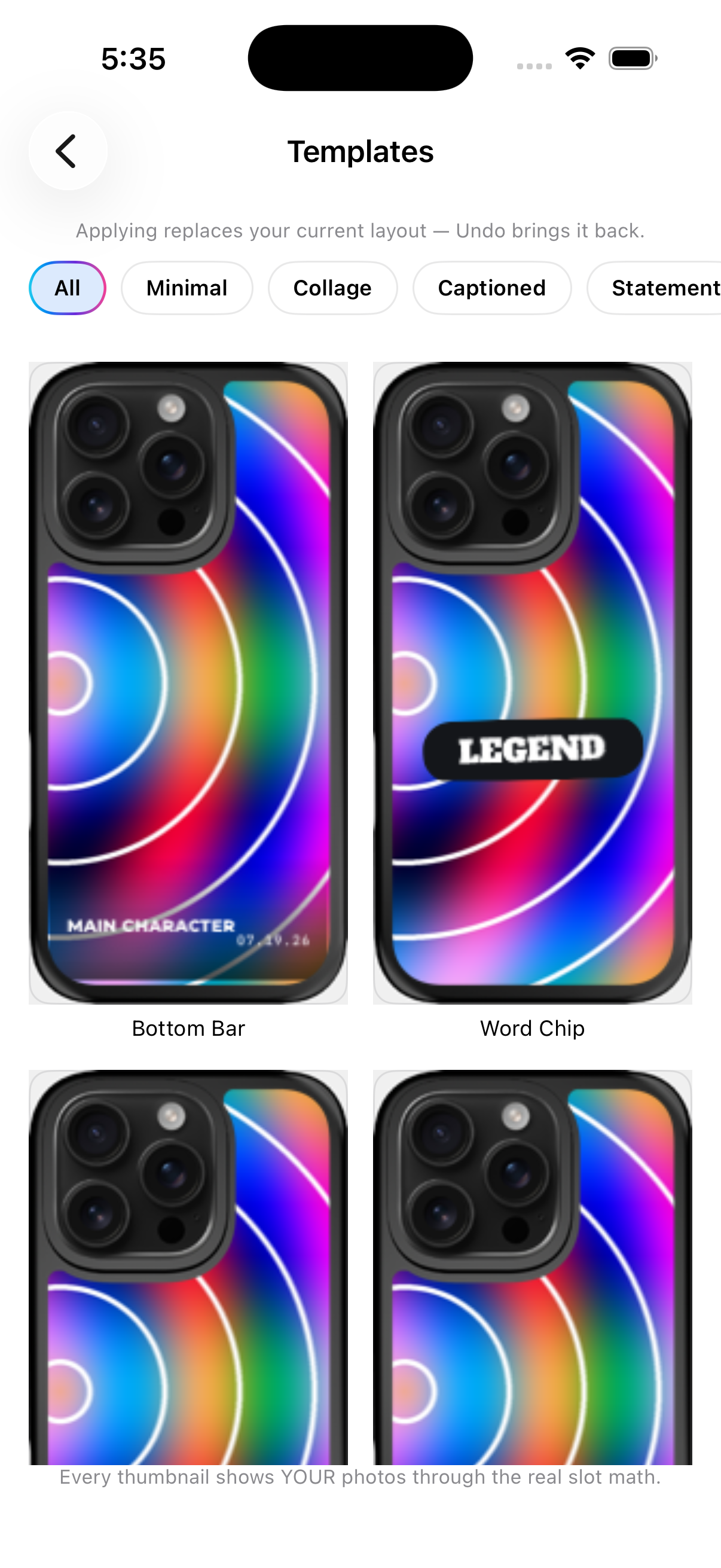
Templates is a full-screen gallery of every layout — Minimal, Collage, Captioned, Statement, Big Moments, Duo, Pattern. Every cell is a live composite of your own photos through that template's real layout math (or neutral placeholders if you haven't added photos yet).
- Filter with the category chips, or swipe sideways anywhere on the grid to page between categories.
- Tap a template to apply it. Applying replaces your current layout — and Undo brings it back, always.
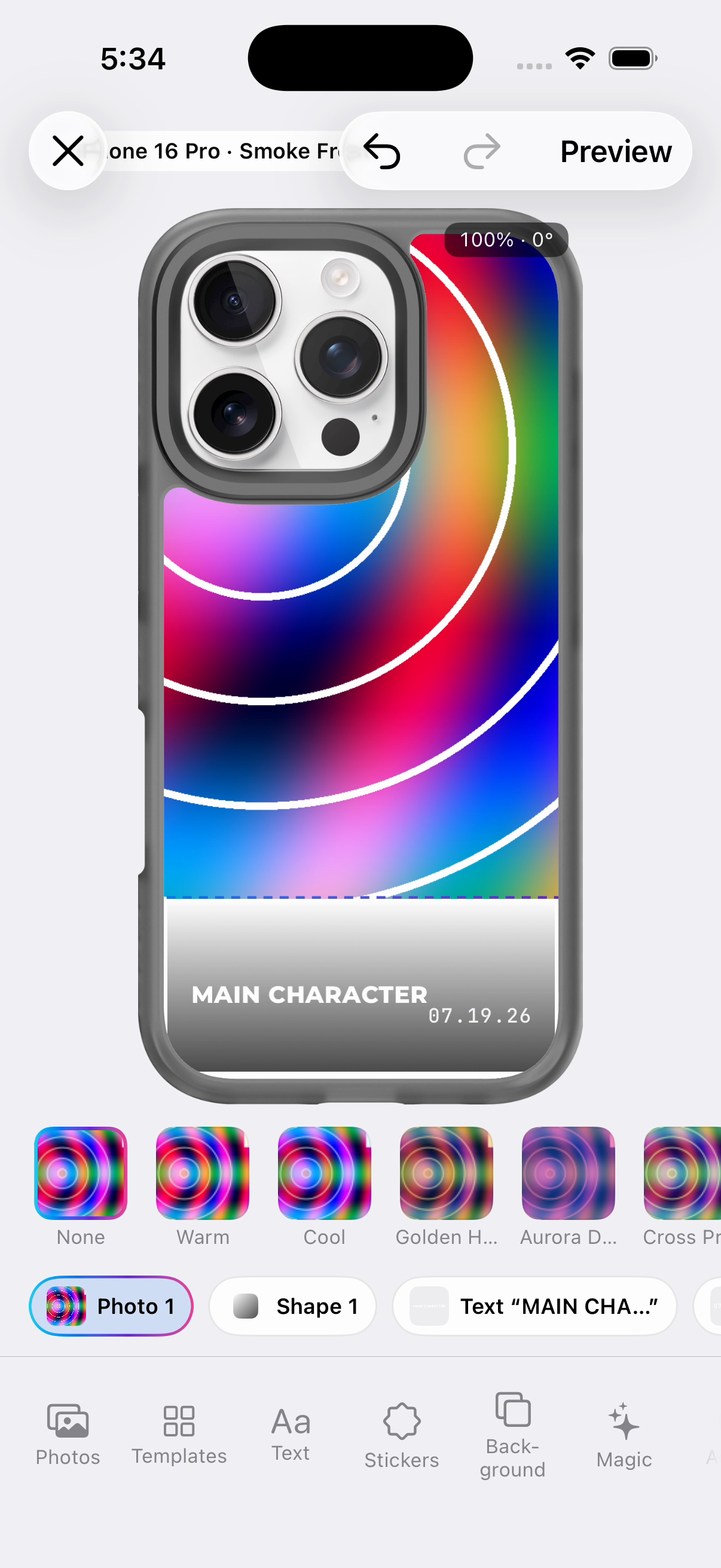
- After it applies you land straight back in the editor: drag to reposition, pinch to resize, and the design is yours to push around.
Start from a saved design
Start here to remix something finished.
Designs is a library of 40 ready-made, fully-composed designs — searchable, filterable by category, each previewed live on your case. Every design carries a license badge (owned / licensed / royalty-free). Tap one to apply it and start editing; your previous work is auto-saved as its own draft first, so nothing is lost.
- No matches? Clear the search or switch the category chip back to All.
- "Design library missing" / "Preview unavailable" — rare load failures; close and reopen the app. Your drafts are safe.
Everything on this screen family works offline — the phone registry, the case renders, templates, and the designs library all ship inside the app.